 LINKINFO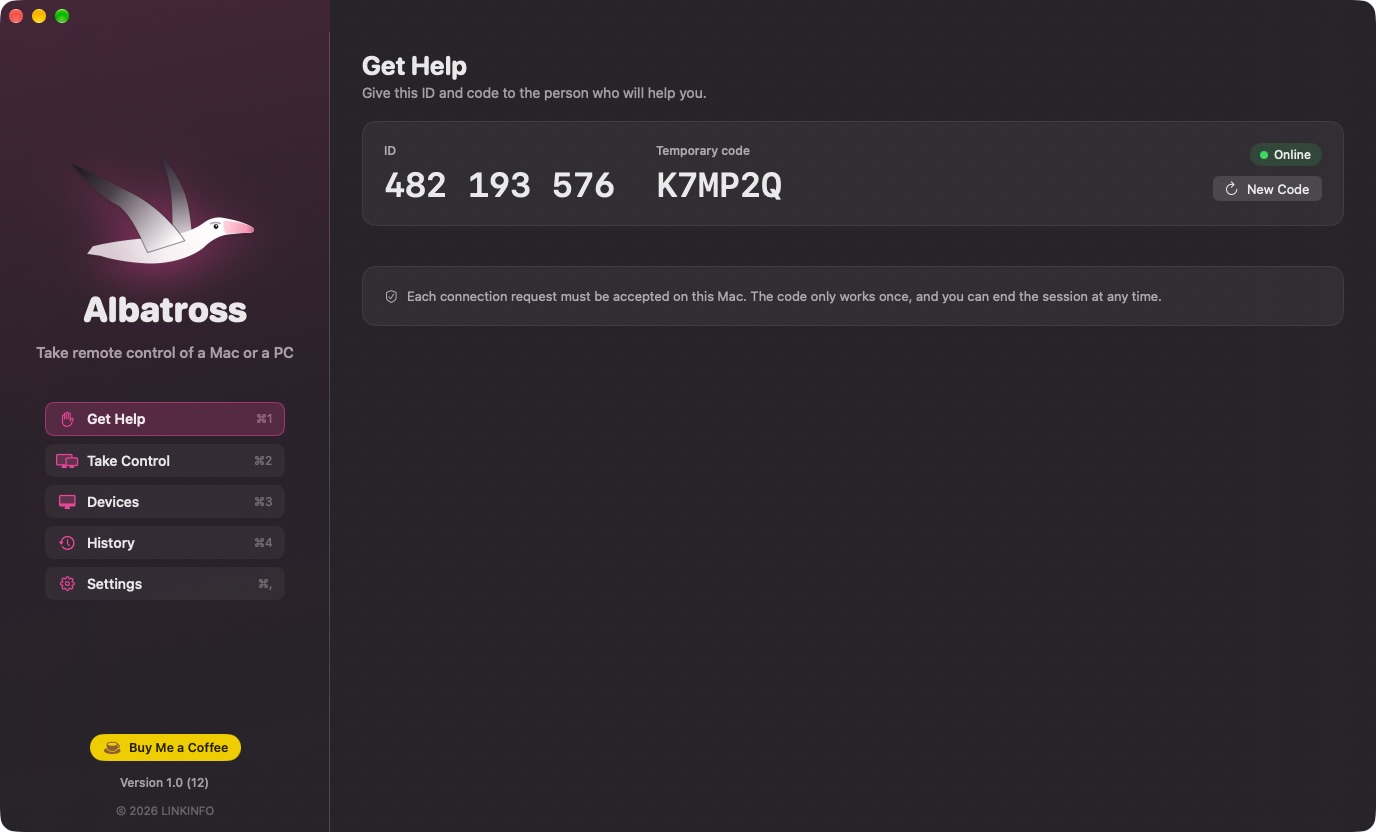
Albatross connects two computers, Mac or Windows PC, wherever they are. The person who needs help opens the app and gives you their ID and a one-time code; you then see their screen and use their mouse and keyboard as if you were sitting in front of it. Nothing to set up, no account, no router to open: the connection goes through a relay, and it is end-to-end encrypted. Albatross is free.
What Albatross does
Get help
For the person who needs help: open the app, read two codes, accept.
- A 9-digit ID unique to your computer, which never changes, and a 6-character temporary code.
- The code only works once: after each session, a new one replaces it. A button gets a new one at any time, and it changes on its own after five wrong attempts.
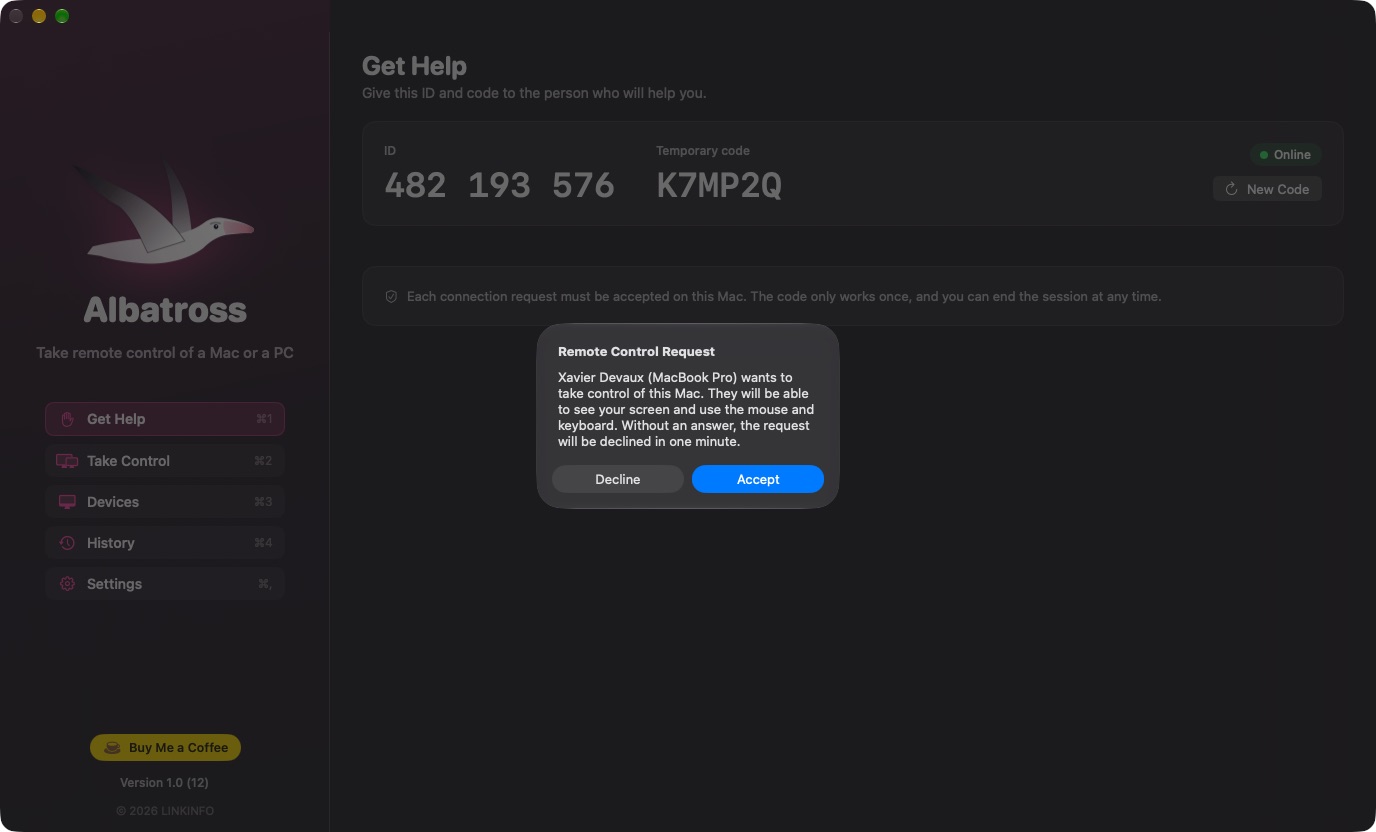
- Every request must be accepted on your computer, with the name of the person making it; without an answer, it is declined after one minute.
- You see everything that happens and you can end the session in one click.
- Albatross opens with your session and stays discreetly in the menu bar (Mac) or the notification area (Windows): a green dot shows your computer can be reached, orange when someone is controlling it, red if something is wrong.
Take control
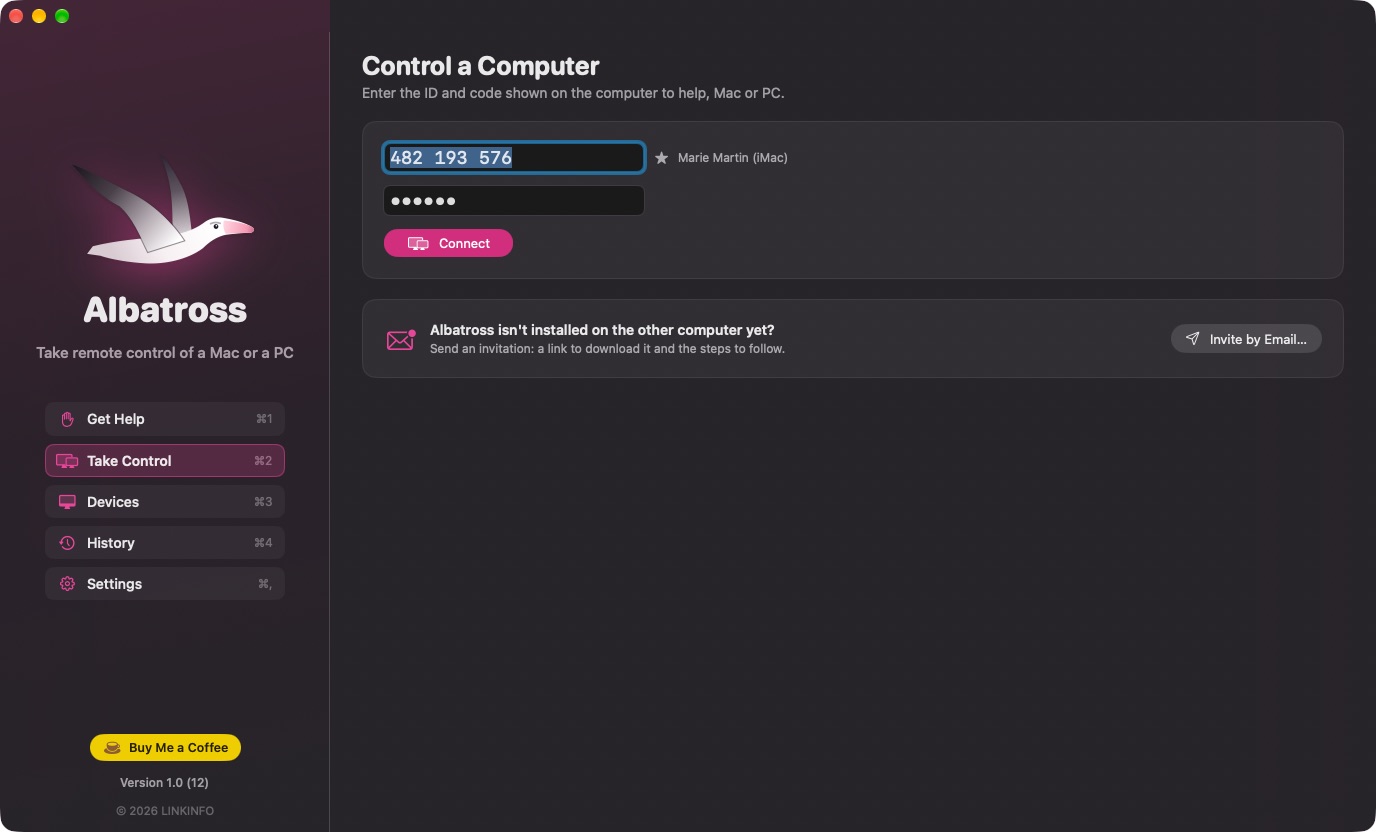
For the person helping: the other computer's screen in a window, and its controls at your fingertips.
- The remote screen live, encoded in low-latency H.264, up to 30 frames per second.
- Mouse and keyboard: clicks, double-click, right-click, drag and drop, trackpad or wheel scrolling, and every shortcut (⌘C, ⌘V, ⌘Q…) sent to the other computer.
- A window you can enlarge or shrink at will; when zoomed, the image fills it. Closing it ends the session.
- If the other computer hasn't allowed control yet, its screen still shows, and control turns on as soon as permission is given.
- Zoom into part of the screen (buttons, or pinch on the trackpad): the other computer then sends only that area, at full resolution — a 49-inch screen reads perfectly well from a 13-inch laptop.
- Mac and PC both ways: a Mac helps a PC, a PC helps a Mac; shortcuts keep their meaning (⌘ ⇄ Ctrl).
Chat and devices
Talk during the session, and find the computers you help in one click.
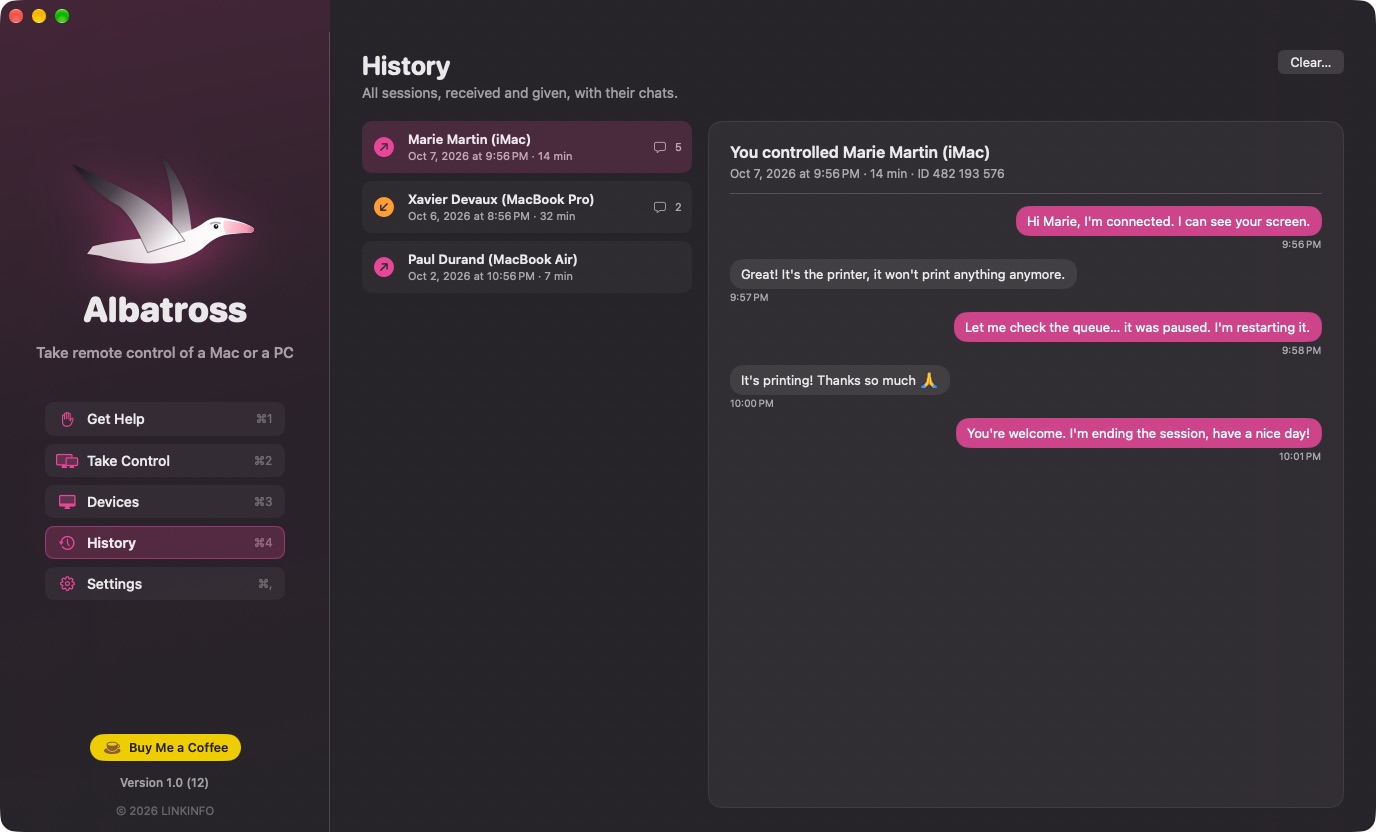
- Chat: your messages appear instantly on the controlled computer, and the person replies in the same window.
- History of every session, received and given, with its chat.
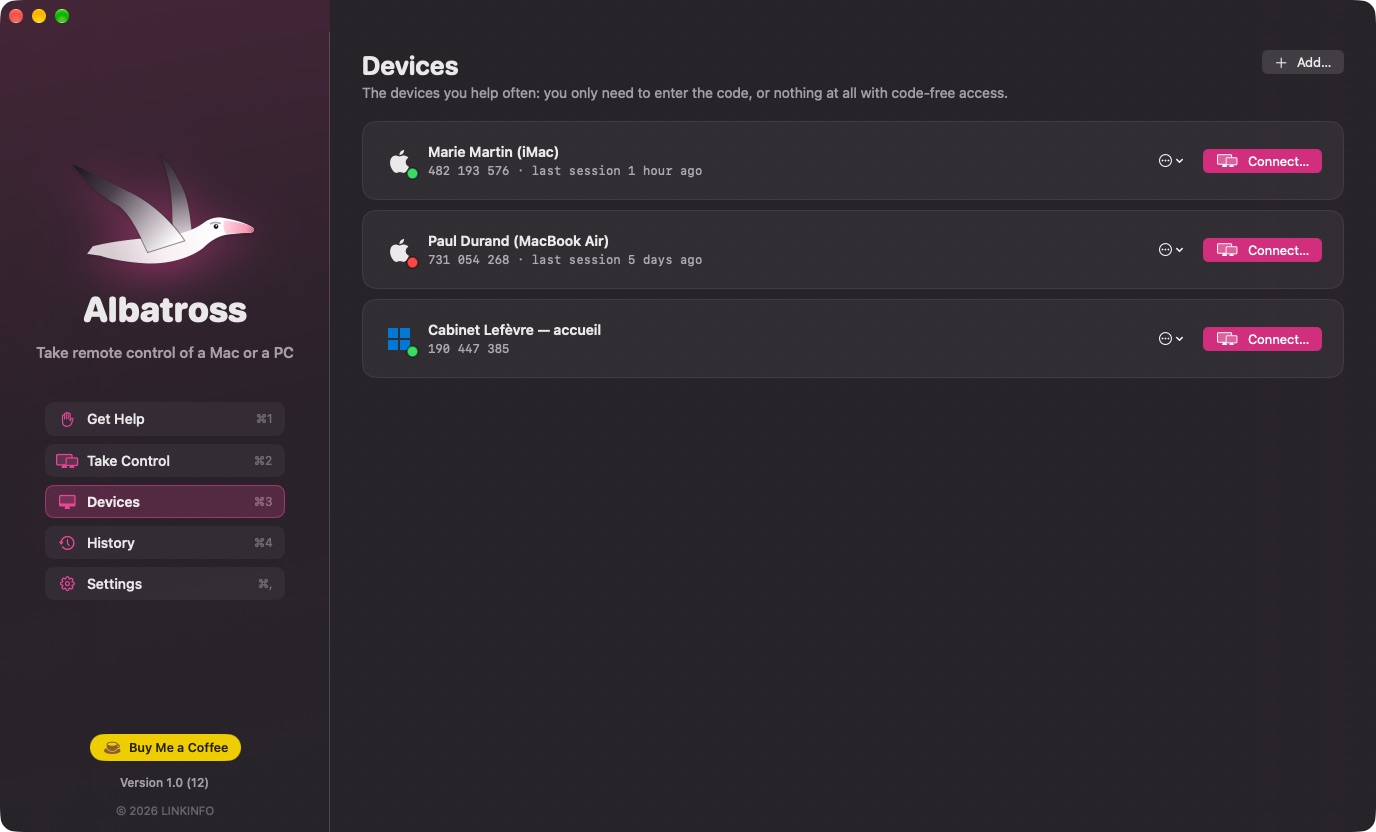
- Saved devices: a name and an ID kept, a green dot when the computer can be reached, the Apple or Windows logo; you only need to enter the code.
Invite by email
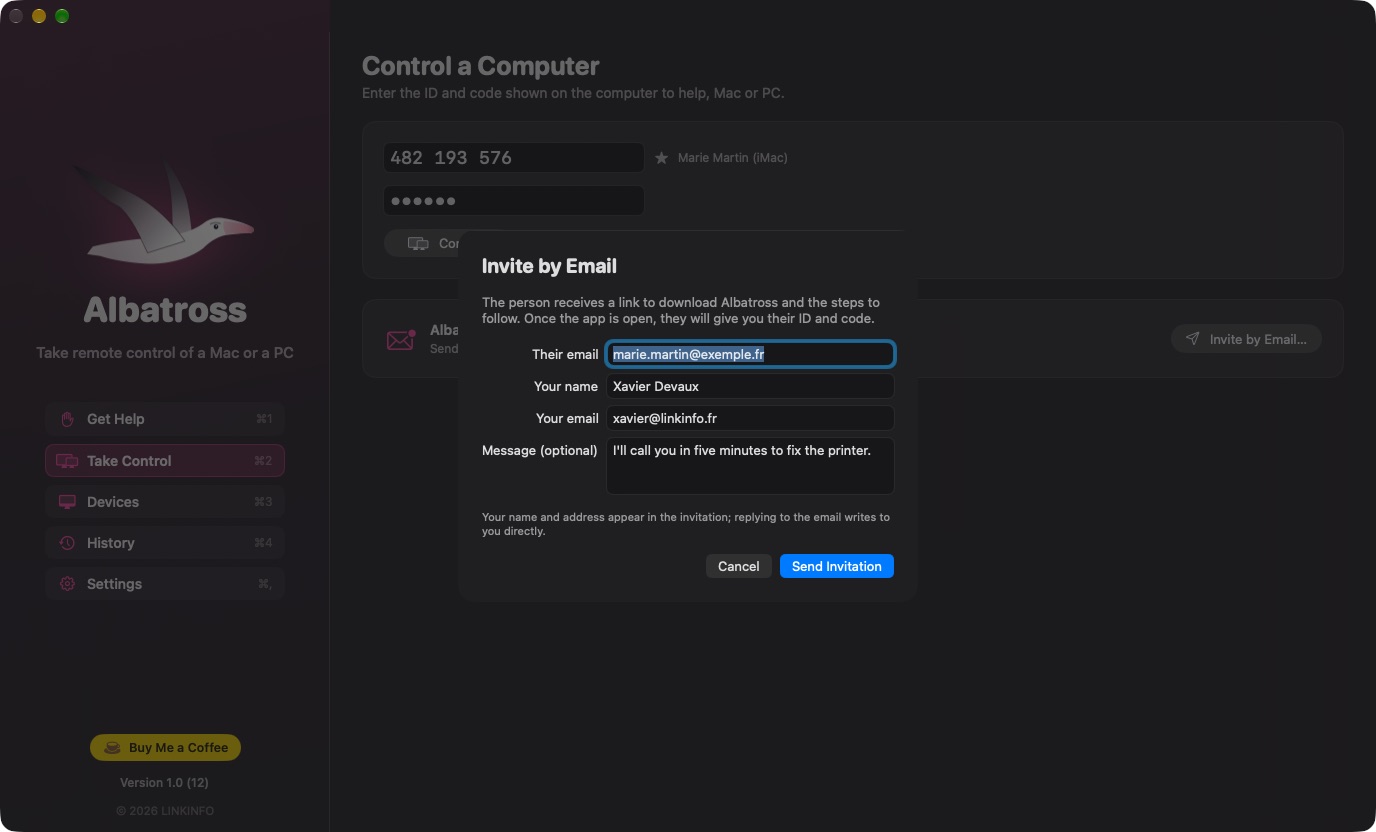
Albatross isn't installed on the other person's computer yet? They get everything they need.
- Enter their address: they receive a download link and the steps to follow, with your name and address.
- Their reply comes straight to you, and you receive a copy of the invitation.
- The invitation reminds them never to let a stranger take control of their computer.
Security
What passes between the two computers is nobody else's business.
- End-to-end encrypted connection (X25519, ChaCha20-Poly1305): the relay passes on bytes it cannot read.
- The temporary code is never sent: it is used to check that the two computers are really talking to each other.
- Connection attempts are limited per ID and per address.
- On a Mac being helped, macOS asks for two permissions: Screen Recording to be seen, Accessibility to be controlled. On a PC, nothing to allow.
In pictures
A coffee for what's next
Albatross is free, ad-free, and will stay that way. I develop it in my spare time: every coffee helps fund the next versions, fixes and new features, and tells me the app is useful to you.
Installation
On Mac
- Download the .zip fileIt unzips on its own in the Downloads folder.
- Drag Albatross to ApplicationsIn the Finder, into your Mac's Applications folder.
- Open AlbatrossThe app is signed and notarized by Apple: it opens without a warning.
On a Windows PC
- Download the .msi fileIt lands in the Downloads folder.
- Open itIf Windows shows “Windows protected your PC”, click “More info”, then “Run anyway”.
- Albatross installsNo administrator rights needed; open it from the Start menu or the desktop shortcut.
Requirements
- Free, no account or subscription.
- Mac: macOS 14 Sonoma or later, Apple or Intel chip.
- PC: Windows 10 or 11, 64-bit; installs without administrator rights.
- Albatross open on both computers, with an Internet connection.
- On a Mac being helped: the Screen Recording and Accessibility permissions, to give once.


